
You can access your Anytime Mailbox account in two ways:
Via Web Browser: Visit www.anytimemailbox.com.
Download Anytime Mailbox App:
Steps to Log In:
1. Access either the website or the mobile app.
If you’re accessing the website, click the Log In button on the top right. You will then be routed to a page asking you to enter your email address and password.


2. If you have downloaded the app, just type in the username and password:
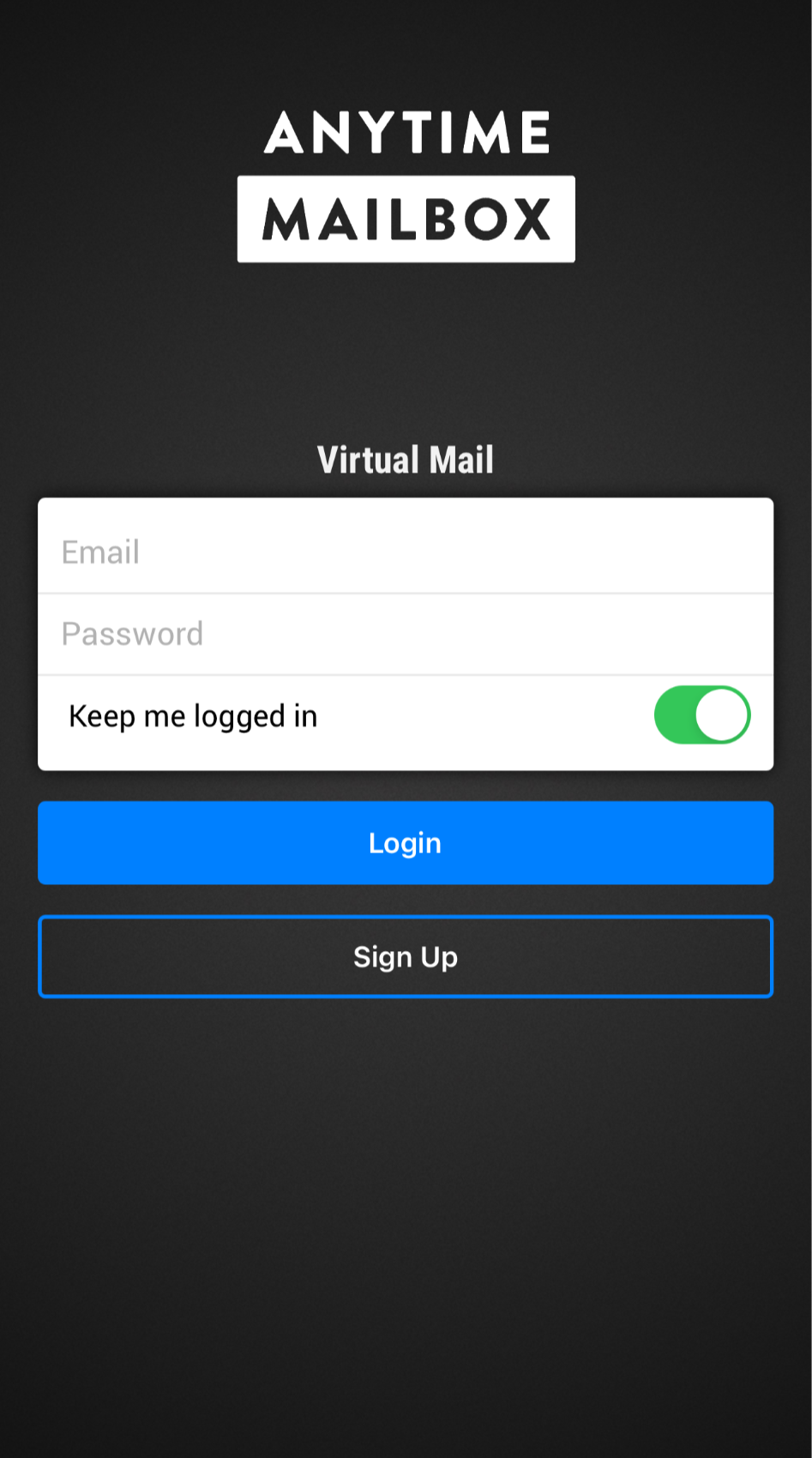
Important Reminder: Ensure that you enter the same email address used during sign-up. Your password should also match the one you created during initial registration.
Resetting Your Password
Website:
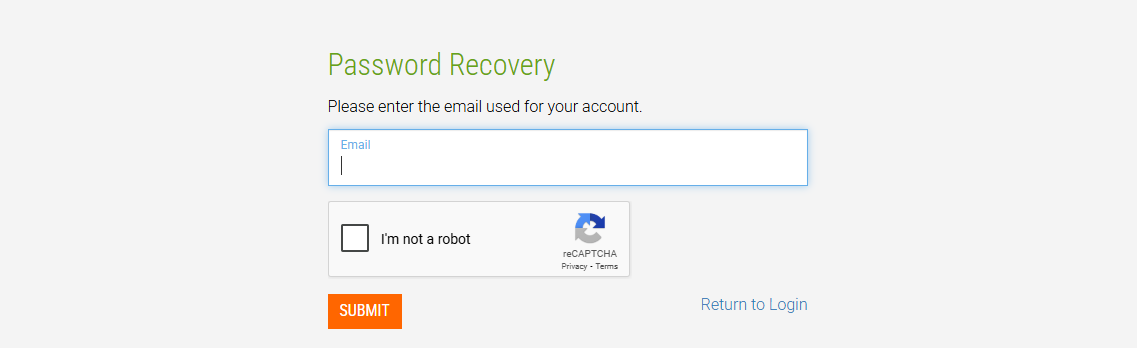
If you log in to the website and need assistance resetting your password, simply click on this link.
Mobile App
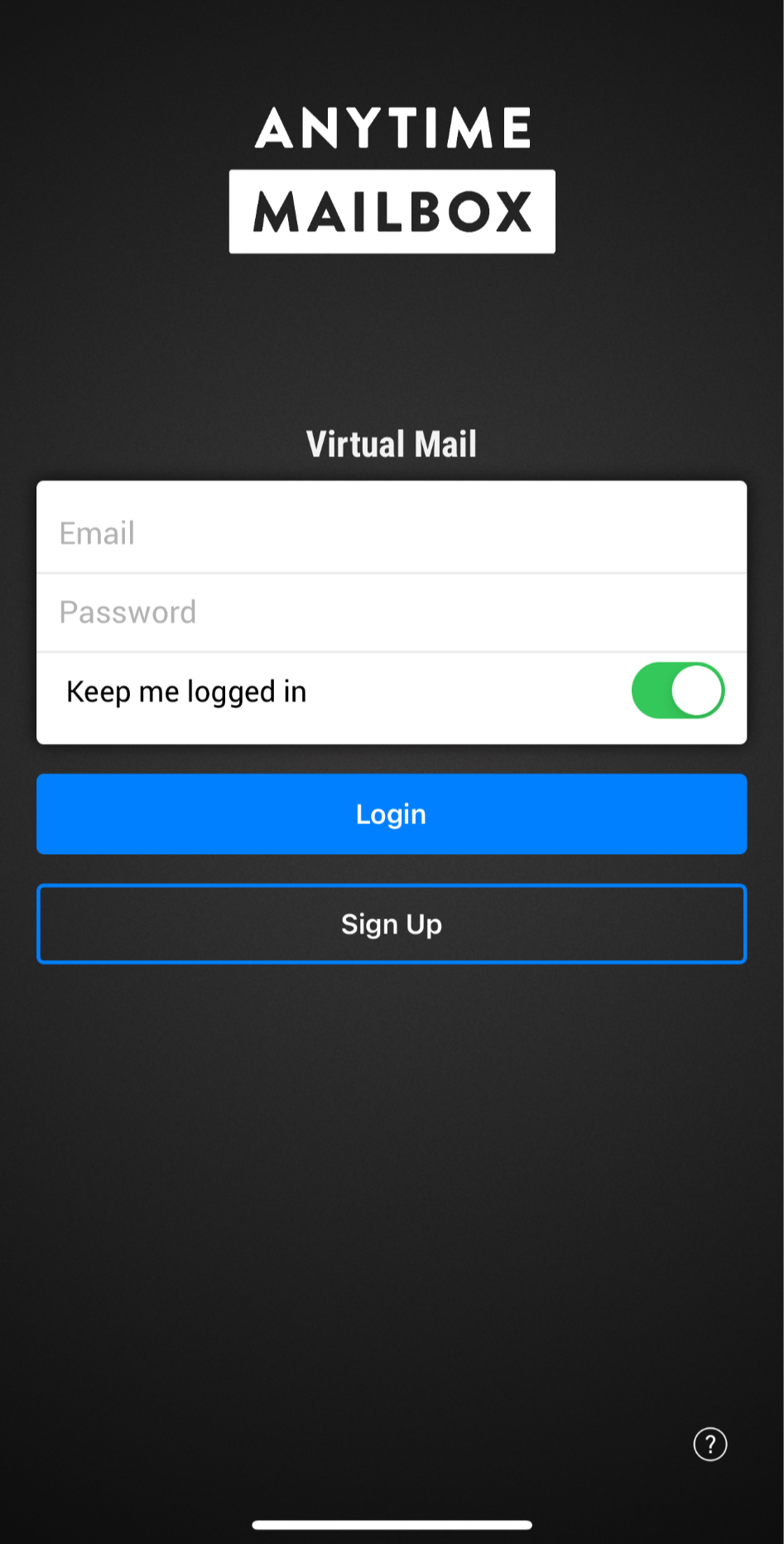
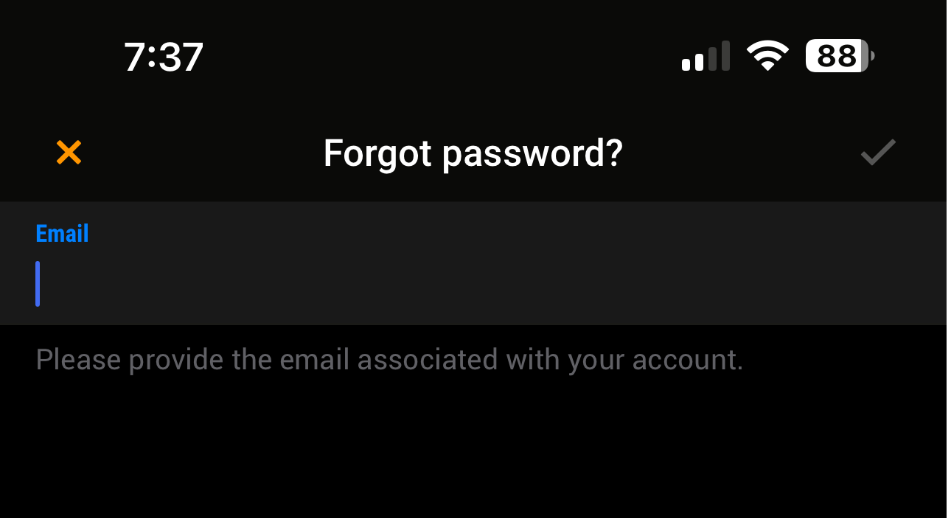
From the log-in page, click the question mark (?) icon at the bottom right of the page.
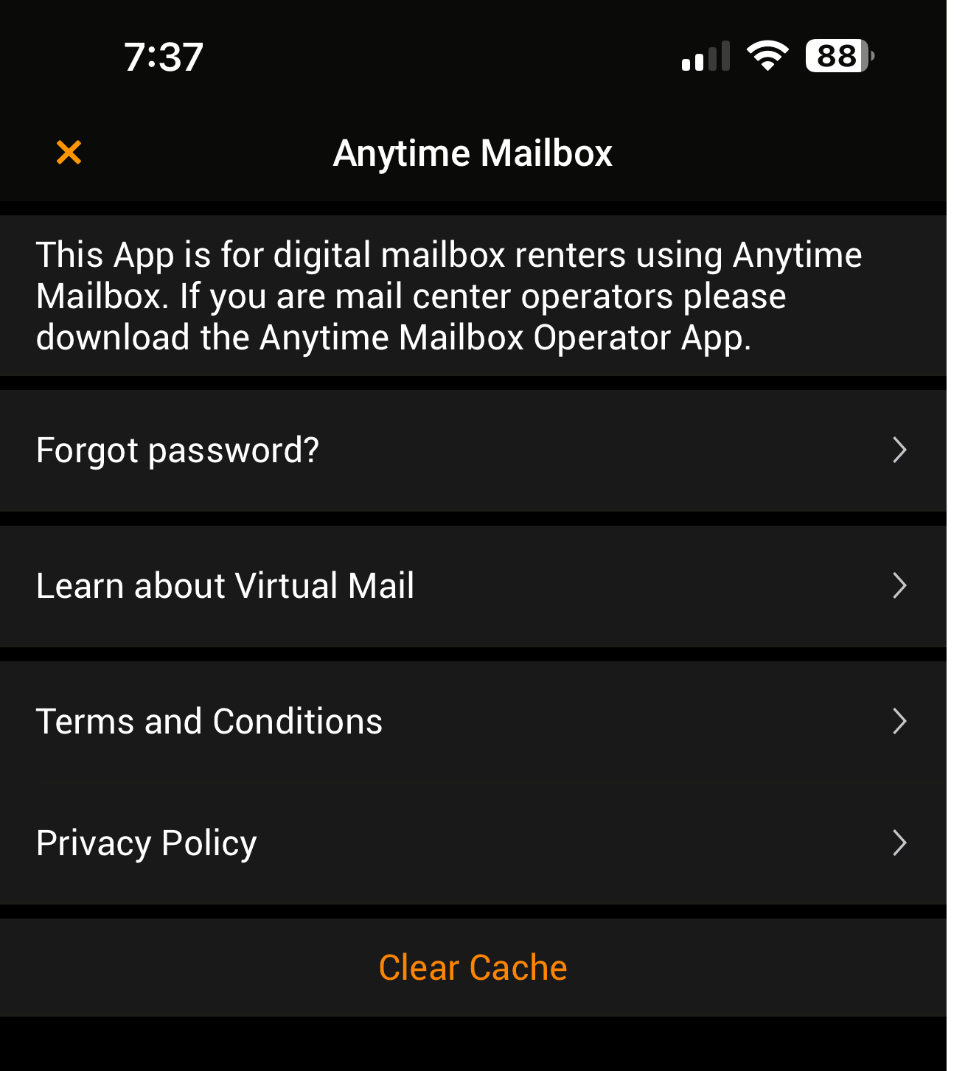
Select “Forgot password?” from the list of options.
Enter your email and click the checkmark icon to receive a password reset link.
Freshdesk Support Portal Login vs. Mailbox Dashboard
Separate Support Login: Please note that the Freshdesk Support Portal operates on a separate system from your main Anytime Mailbox dashboard. Your support portal account uses separate login credentials.
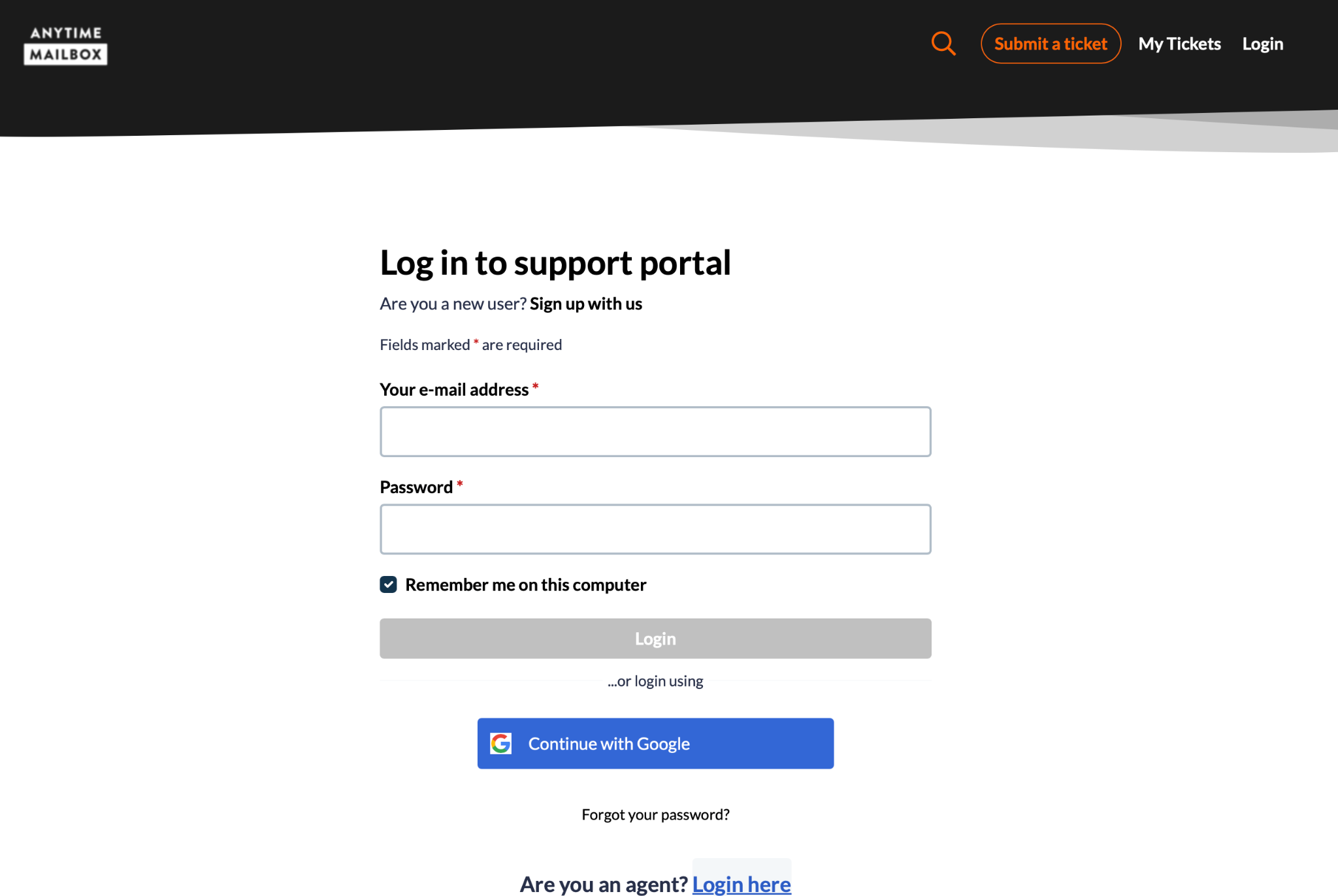
How to Access or Reset Support Login: To log in, track tickets, or reset your password on the Support Portal, visit https://help.anytimemailbox.com/support/login and click "Forgot your password?" or "Sign up with us".
No Impact on Mailbox Data: Resetting or changing your password for the Freshdesk Support Portal does not affect your main mailbox login, archived mail scans, or account history in your renter portal.