
This article is a step-by-step troubleshooting guide to help you resolve payment issues, clear temporary account holds, and prevent service suspension.
It explains why overdue balance emails are sent, how to update your credit card details or fix card-update errors like "request is blocked," and when your mailbox services will be automatically reactivated after payment and required verification are complete.
1. Understanding Billing Issues & Account Statuses
Failed Payments & Overdue Balance Emails: If a credit card charge fails, our system sends an overdue balance reminder email titled "Just a friendly reminder about your bill..." notifying you of the unpaid balance and temporary account suspension. Mail services remain paused until you settle your outstanding balance.
Temporary Authorization Holds & Suspensions: Unpaid balances place a temporary hold on your mailbox features to protect your account and avoid permanent account termination. Automated background retries will continue, until you manually update your payment info.
Consecutive / Double Charge Inquiries: If you missed a past invoice, clicking Update and Charge processes the past-due balance along with current charges. These are separate valid invoices cleared together, not double charges for the same month.
2. How to Update Your Card & Pay Your Outstanding Balance
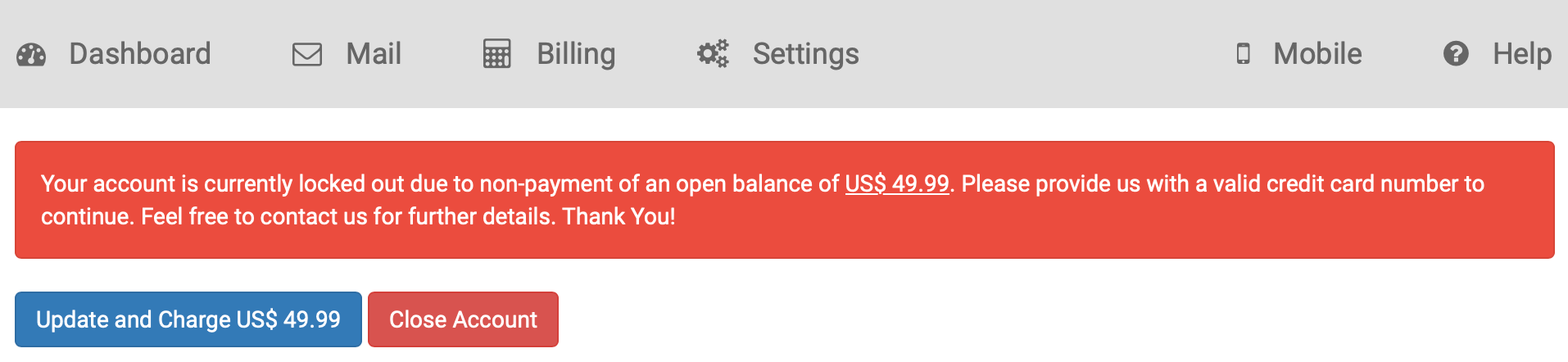
Log in to your account at www.anytimemailbox.com.
Click the Red Payment Banner at the top of your dashboard, or navigate to Billing.
Click the Update and Charge button.
Enter your new credit or debit card details.
Click Update and Charge again to process your payment immediately.
Note for Mobile Web Users: If you log in using a mobile web browser (like Safari or Chrome on your phone) while locked out, the Update and Charge button might not display properly due to mobile screen scaling.
You can resolve this by switching your mobile browser setting to "Request Desktop Site", logging in on a computer, or using the official Anytime Mailbox Renter App if your account is fully verified.
3. How to Fix the "Request is Blocked" Error
If you see a pop-up saying "Request is blocked" when saving your new payment details, follow these quick steps in order:
Clear Browser Cache & Cookies: This clears out expired session data that might be blocking the login.
Turn Off VPNs & Ad-Blockers: Active VPNs or privacy browser extensions can intercept secure payment gateway requests.
Use an Incognito / Private Window: Opening a private browser window bypasses local cookies and extension interference.
Switch Networks: If you are on corporate or public Wi-Fi, switch to mobile data or private Wi-Fi to get around network security blocks.
4. When Service and Mailbox Activation are Restored
Payment-Only Holds: Once your payment goes through, your account and mail services are reinstated automatically and immediately.
Payment & ID Verification Holds: If your account is locked for payment and pending USPS Form 1583 or ID approval, your payment clears the billing hold, but full mailbox access remains paused until your verification documents are reviewed and approved.
5. Need Extra Help or Download the App
If you continue to experience issues or believe you received an overdue notice in error, you can contact support directly:
Phone: +1 (702) 935-5664
Email: help@anytimemailbox.com
Download the mobile app so you never miss billing notifications and can manage your mail anywhere:
iOS: Anytime Mailbox Renter App (Apple App Store)
Android: Anytime Mailbox Renter App (Google Play Store)