
If your account is currently unverified and you need to update your personal name or add a business name (due to ownership changes, LLC filings, or simply for corrections), you can easily do this during the verification process.
To ensure full access to your account, we recommend using a desktop or laptop computer for these steps.
How to Update Your Information
Follow these steps to edit your details before completing your notary session:
Log In: Access your Account Portal on a computer.
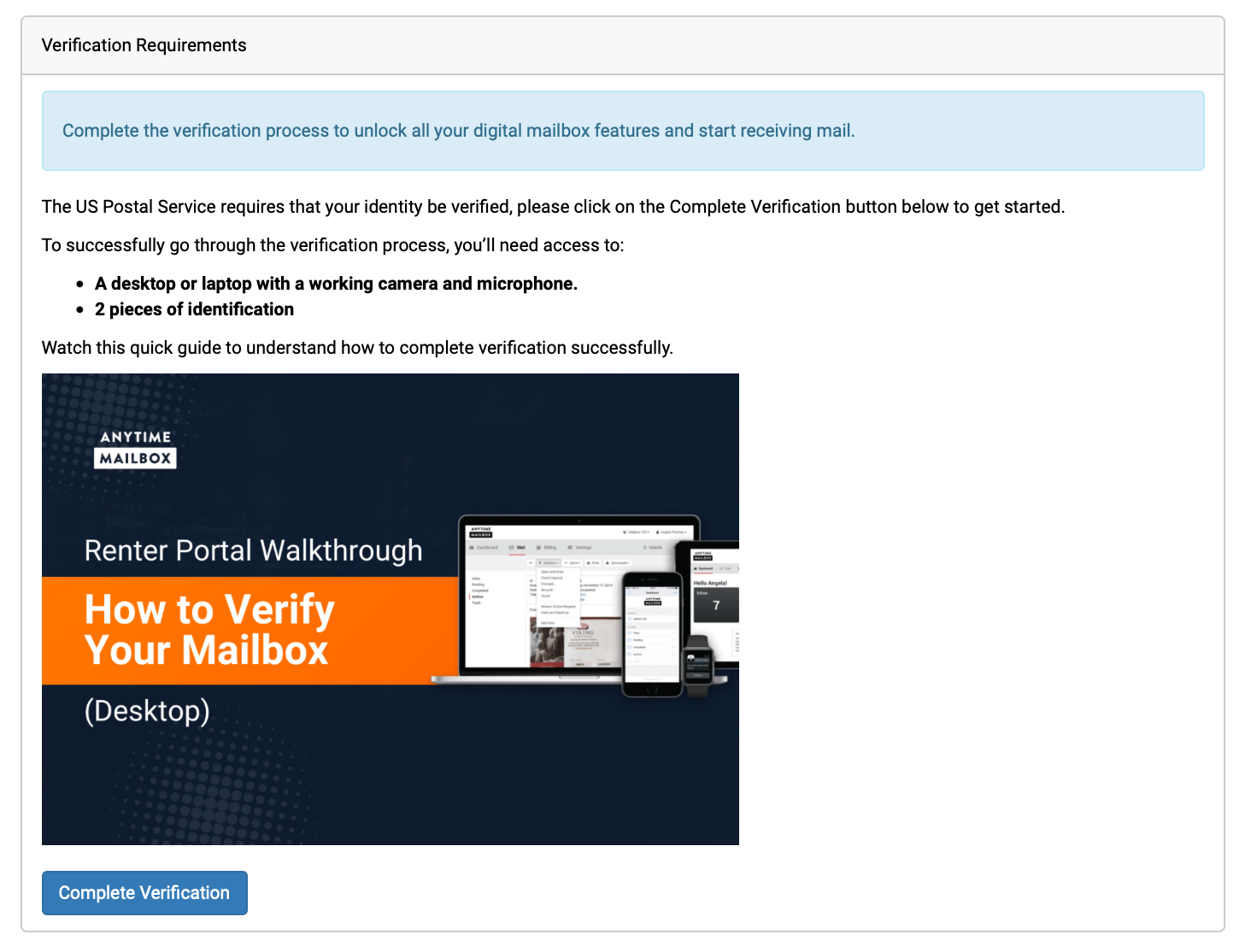
Start Verification: From your Dashboard, click the Complete Verification button.
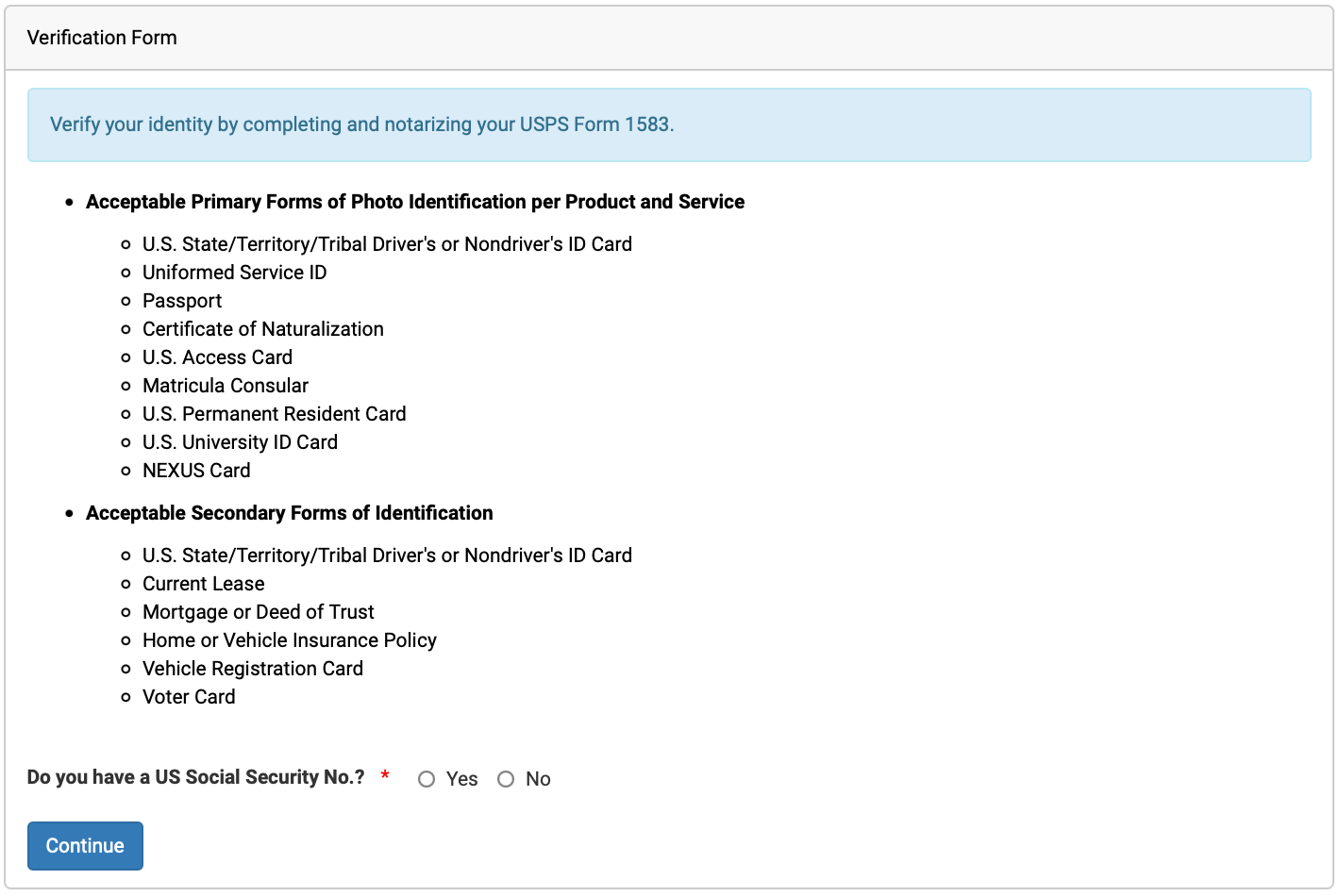
Identity Prep: You will see a list of valid IDs required for the notary. Select "Yes" or "No" regarding whether you have an SSN, then click Continue.
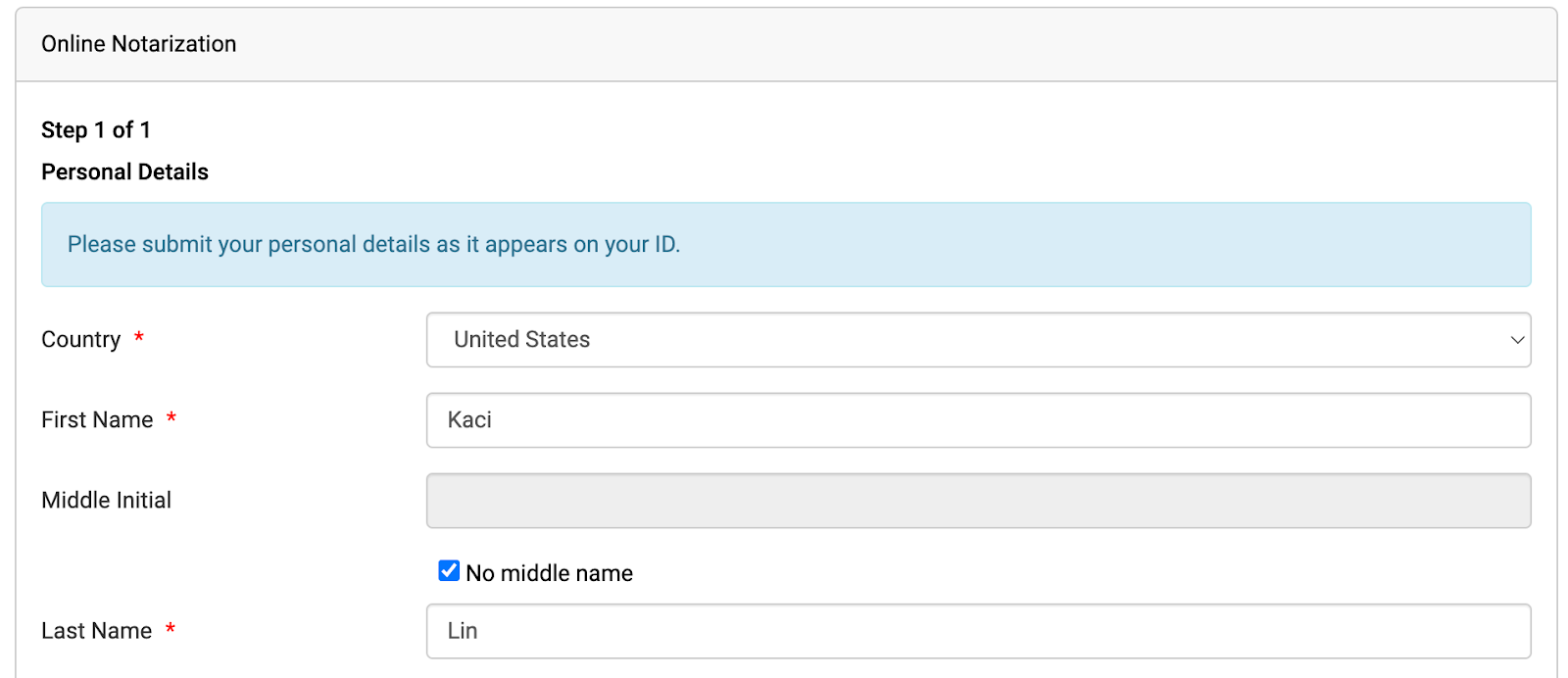
Edit Your Details: You will reach a page displaying your account information.
To Change Your Name: Simply edit the name fields directly under Personal Details. Please see image below:
To Add/Change a Business Name: Locate the Mailbox Usage dropdown and select "Business Mailbox." This will reveal the fields to enter your business name and details.
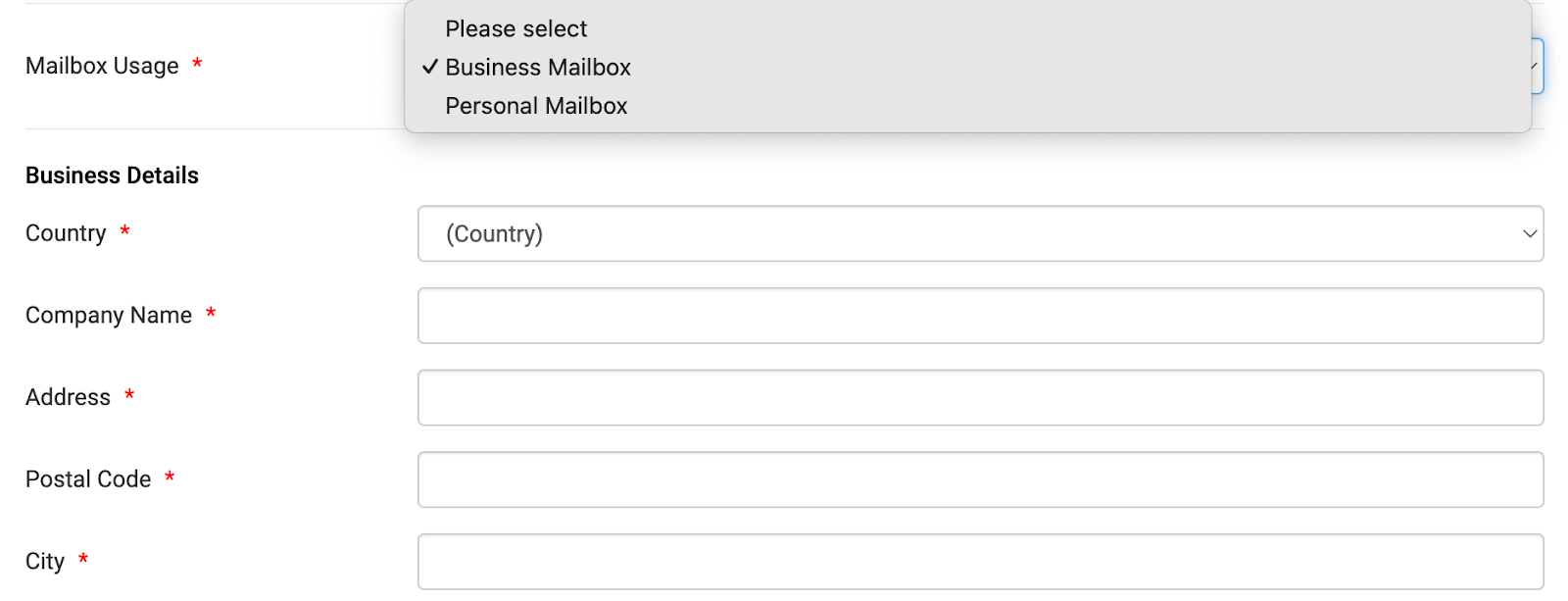
Important Note: You cannot use your new mailbox address as your business address. If you don’t have a physical store or office, please use your home address instead. Don’t worry, this is strictly for verification purposes, it will not be in public view and won’t change how your mail is handled!
Finalize and Notarize: After you’ve updated your name and filled out the form, you’re all set to proceed with the online notary to finish your account verification. Simply click the blue Use Online Notary button.

What to do if you don’t see these options or cannot access a computer?
Please contact us or email us at help@anytimemailbox.com . We can update your name or business details for you.
If your account has already been verified and you need to make a account or business name change, the process is slightly different. Please click the link below How to Update Your Account or Business Name (Verified Accounts)