
If you are waiting for incoming mail or packages, please note that physical delivery by a carrier (USPS, UPS, FedEx) does not mean immediate portal availability. Mail is processed in batches and typically takes 24–48 hours after store arrival to appear online. Deliveries made on weekends, holidays, or postal holds will be processed on the next business day.
If your mail has exceeded these timelines and has not appeared online, please review the required pre-checks and troubleshooting steps below:
Verify Your Account
Ensure your account is fully verified. The mail center cannot receive mail on your behalf unless your account verification is complete.
Confirm Your Address
Double-check that the mailbox address you've provided matches the virtual mailbox address you signed up for. You can login to your account from your Dashboard > Scroll Down to Your Mailbox Address.
Missing or incorrect suite/mailbox numbers will cause processing delays or result in mail being rejected or marked as unassigned by the mail center.
Notify Senders of Your New Address
Submitting a USPS 1583 form does not notify your senders of your virtual mailbox address.
You need to manually inform your senders of the new address or use USPS's Change of Address service for a more convenient option.
Verify the Recipient Name
Ensure the mail item is addressed to the name or business name listed on your account. The mail center can only accept mail addressed to the registered name(s) on file.
To add Authorize Recipient, check this article: Adding an Additional Recipient onto your Mailbox
Dashboard Count Mismatch
Verify Email Subject Line & Sync: Check whether the notification subject line says "New Mail" or is a setup/verification notice. Verification notices confirm document updates and will not increase your dashboard mail count. If it is a "New Mail" alert, allow a few minutes for the system to sync, then refresh your browser or log back in.
Partner Retractions: If your email notification indicated a "New Mail" alert but your dashboard item count is lower or missing an item, the mail center partner may have retracted a wrongly assigned item.
Next Steps if All Requirements Are Met
If you’ve completed the steps above and you still haven’t received mail, please reach out directly to your mail operator to investigate. Please provide the following details to help them resolve the issue quickly:
The type of mail item you’re expecting (Standard Mail or Package)
The sender’s information
Tracking details, if available
Date it was delivered
Contact Mail Center Operator
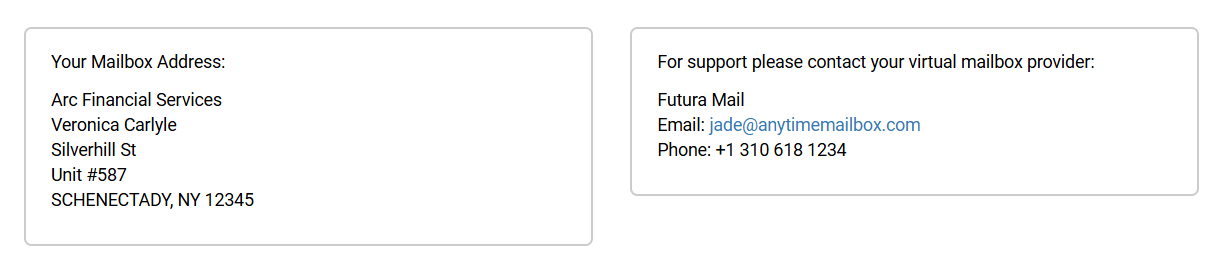
To contact your mail center operator, login to your mailbox account using a desktop or laptop computer, scroll down on your Dashboard to find the mail center's contact information (address, phone number, and email), and ensure to check the unit or suite number listed in the address.
System Glitches
On rare occasions, a temporary system glitch or dashboard display issue may prevent an uploaded item from showing up correctly. If you suspect a technical delay, please contact us directly or email help@anytimemailbox.com so our Support team can verify the item's status with your mail center or check for active platform outages.